

Excel and Google Sheets are two of the most widely used tools in finance. Here’s the quick takeaway:
- Excel is ideal for handling large datasets, complex financial models, and advanced automation. It’s better suited for tasks like scenario modeling, variance analysis, and creating detailed dashboards. However, it requires more expertise and comes with higher costs.
- Google Sheets excels in real-time collaboration, ease of use, and affordability. It’s perfect for teams needing quick, shared access to spreadsheets and basic automation.
Key Differences:
- Capacity: Excel supports up to 17 billion cells; Google Sheets maxes out at 10 million.
- Functions: Excel offers 450+ built-in formulas, while Google Sheets has just over 200.
- Automation: Excel uses VBA and Power Automate; Google Sheets relies on Google Apps Script and Zapier.
- Collaboration: Google Sheets allows seamless real-time editing; Excel’s collaboration is less intuitive.
- Cost: Google Sheets offers a free tier; Excel requires a Microsoft 365 subscription or a one-time purchase.
Quick Comparison
| Feature | Microsoft Excel | Google Sheets |
|---|---|---|
| Data Capacity | 17 billion cells | 10 million cells |
| Functions | 450+ | 200+ |
| Automation Tools | VBA, Power Automate | Google Apps Script, Zapier |
| Collaboration | Requires saving/syncing | Real-time editing |
| Cost | $6–$22/user/month (or one-time) | Free for personal use; $6–$18/month |
| Security | Advanced, flexible storage | Cloud-based, FINRA-ready (2025) |
Bottom Line: Use Excel for advanced analysis and large datasets. Choose Google Sheets for collaboration and quick access. A hybrid approach can leverage the strengths of both.
Should you use Google Sheets or Excel?
Core Features for Financial Planning and Analysis
When tackling financial models or managing complex FP&A tasks, the capabilities of your spreadsheet software can make or break your workflow. Excel and Google Sheets stand out as popular tools, but their differences are stark, especially for financial professionals handling intricate data. Let’s dive into how their features stack up for key FP&A tasks.
Data Handling and Performance
When it comes to handling large datasets and performing complex calculations, Excel outshines Google Sheets. Excel can manage up to 1,048,576 rows without breaking a sweat, while Google Sheets tends to slow down significantly once datasets surpass 1,000 rows [3].
For finance teams working with detailed transaction data, monthly actuals spread across numerous cost centers, or running comprehensive scenario models, this performance difference is critical. Strong data-handling capabilities form the backbone of advanced financial modeling.
Advanced Tools for Financial Modeling
Beyond sheer data capacity, having the right tools at your disposal is essential for FP&A work. Excel leads the way here with over 450 built-in formulas, compared to just over 200 in Google Sheets [2]. This gives Excel users access to specialized functions needed for tasks like complex valuations, risk analysis, and forecasting.
One standout feature in Excel is Power Query, which allows users to connect, merge, and refine data from various sources. Google Sheets lacks this functionality, often requiring manual workarounds or third-party add-ons for similar tasks [1].
Excel also offers more advanced pivot table features, which are invaluable for creating variance analysis reports or dynamic financial dashboards. Its Power Pivot feature takes things further, enabling detailed data modeling for enterprise-level analysis. Google Sheets, by contrast, provides only basic pivot table tools [2].
When it comes to visualizing data, Excel offers highly customizable charts, while Google Sheets sticks to basic visualization options [1]. However, there’s a trade-off: Excel’s robust features come with a steeper learning curve, requiring users to invest time in mastering the platform. Google Sheets, on the other hand, is more beginner-friendly, with a simplified interface that’s easier to navigate [1].
Feature Comparison Table
| Feature | Microsoft Excel | Google Sheets |
|---|---|---|
| Available Functions | 450+ functions | 200+ functions |
| Data Analysis | Advanced pivot tables, Power Query, Power Pivot | Basic pivot tables, limited tools |
| Dataset Handling | Handles up to 1,048,576 rows efficiently | Performance drops after 1,000 rows |
| Offline Access | Full desktop functionality | Requires internet connectivity |
| Chart Customization | Advanced, highly customizable | Basic charting capabilities |
| Learning Curve | Steep, requires expertise | Easy to use, beginner-friendly |
As of late 2022, 63% of companies identified Excel as an essential tool for accounting, underscoring its dominance in financial operations [3]. Excel also continues to lead the market as the top spreadsheet software, thanks to its extensive feature set [3].
Automation and Custom Workflows
Finance professionals handle tasks like monthly budgets, variance reports, and forecast updates regularly. Automating these processes can save time and reduce errors, and both Excel and Google Sheets offer tools to make this happen – each with its own strengths and approach.
Automation Options: Excel vs. Google Sheets
Excel uses VBA (Visual Basic for Applications) and Power Automate to streamline workflows. With VBA, finance teams can create custom macros and functions to automate tasks like importing data, generating reports, and updating dashboards. For instance, a macro could pull monthly figures from an ERP system, refresh variance calculations, and update executive dashboards automatically. Power Automate takes this further by integrating Excel with other business apps, enabling workflows triggered by spreadsheet changes, sending notifications, or updating files in real time. This makes Excel a strong choice for organizations already using Microsoft’s ecosystem.
Google Sheets, on the other hand, relies on Google Apps Script and Zapier for automation. Google Apps Script, which uses JavaScript, allows users to create custom workflows, automate reports, and schedule tasks. Zapier expands this by connecting Sheets with thousands of apps, enabling no-code automation for tasks like data transfers and notifications. This setup is ideal for teams seeking straightforward automation solutions. While Excel connects with hundreds of business apps, Google Sheets’ integration with Zapier provides access to a much broader range of tools, making it highly flexible and easy to deploy.
In addition to these traditional automation tools, AI-powered features are revolutionizing how financial workflows are managed.
AI and Smart Features
AI tools are increasingly simplifying spreadsheet tasks, helping finance teams analyze data and avoid manual errors. For example, Microsoft Copilot in Excel can assist in creating financial models by auto-generating complex formulas or running scenarios. A financial analyst could ask Copilot to calculate a 5-year compound annual growth rate (CAGR) for revenue, and it would deliver the result instantly. With Python integration, Copilot also enables advanced analytics like forecasting, risk assessments, and machine learning – all through natural language commands.
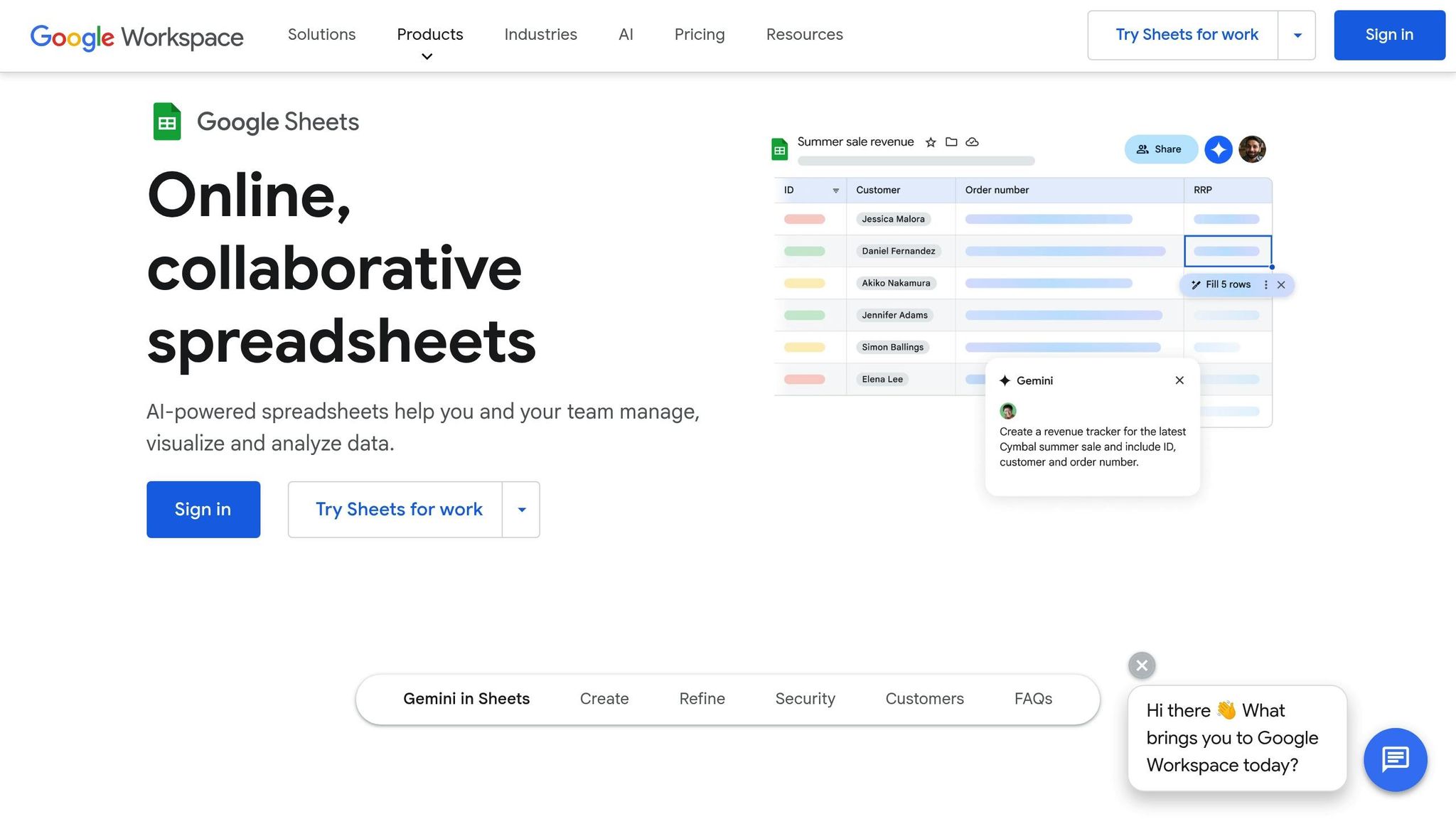
Google’s Gemini in Sheets focuses on summarizing and visualizing data. Users can ask Gemini to review a budget spreadsheet, highlight areas where spending exceeds the plan, and even generate a narrative summary or flag key variances. Gemini operates from a side panel, making it easy to adjust layouts, ask questions, and refine spreadsheet designs.
Both platforms also enhance predictive analytics differently: Copilot offers Python-based analytics for code-driven users, while Google’s tools integrate seamlessly with BigQuery and Looker, supporting collaborative data analysis.
Automation Comparison Table
| Feature | Microsoft Excel | Google Sheets |
|---|---|---|
| Primary Automation Tools | VBA, Power Query, Power Automate | Google Apps Script, Zapier |
| Coding Requirements | Requires VBA knowledge | JavaScript-based, easier to learn |
| App Integrations | Hundreds of business apps | Thousands of apps via Zapier |
| Complexity Level | Ideal for complex workflows | Great for no-code automation |
| AI Capabilities | Copilot with Python integration | Gemini with BigQuery/Looker |
| Learning Curve | Steeper, but highly capable | Easier and more approachable |
| Best For | Advanced custom solutions | Quick automation and collaboration |
The decision between Excel and Google Sheets often comes down to your organization’s expertise and tools. Excel shines for intricate, custom workflows, while Google Sheets is perfect for teams seeking easy-to-use, collaborative automation.
Collaboration, Access, and Security
Finance teams require tools that balance seamless collaboration with strong data protection. When it comes to managing budgets, forecasts, and reports, both Excel and Google Sheets cater to these needs but take different approaches, offering distinct benefits for finance professionals in the U.S.
Real-Time Collaboration and Sharing Features
Google Sheets stands out for its real-time collaboration capabilities. Multiple team members can work on the same spreadsheet simultaneously, making it easy for a CFO to review quarterly forecasts while analysts update figures in real time. Its built-in commenting system further enhances teamwork by allowing users to discuss changes directly within the document.
"Google Sheets is more collaborative than Excel, easily allowing multiple users to work on the same spreadsheet at the same time, in real time." – Christopher Guth, Change Management and Training Specialist [1]
While Excel also supports co-authoring, its collaboration model depends on saving and syncing changes. This can occasionally lead to version control challenges, especially during time-sensitive reporting. Additionally, Excel’s sharing process often requires specific configurations based on the device, organizational setup, or storage location. Both platforms offer version histories, but Google Sheets automatically logs every change, creating a detailed audit trail that’s particularly useful for financial reviews.
These collaboration tools are only part of the equation. The next critical factor is how well each platform safeguards sensitive financial data.
Data Security and Compliance
Security and regulatory compliance are non-negotiable when handling financial information. In June 2025, Google Workspace achieved FINRA compliance, adding features like archival journaling, retention policies, and secure storage options [5]. This bolsters its appeal for organizations in regulated industries.
Microsoft 365, however, takes security a step further with its enterprise-grade tools. Features like Microsoft Entra ID for identity management, multifactor authentication, and conditional access controls provide robust protection. Microsoft Purview adds another layer of safety, offering advanced tools to identify sensitive data, prevent data loss, and ensure compliance with regulatory standards.
The stakes for data security are high. In 2024, FINRA disciplinary actions led to over $75 million in fines [5], while the global average cost of a data breach hit $4.45 million in 2023 – a 15% increase over three years [4]. Excel offers more flexibility in data storage, allowing organizations to store files on local servers, OneDrive, or SharePoint. In contrast, Google Sheets relies exclusively on Google’s cloud infrastructure, which could be a concern for teams with strict data residency policies.
Collaboration Pros and Cons Table
| Feature | Google Sheets | Microsoft Excel |
|---|---|---|
| Real-Time Editing | Seamless simultaneous editing | Requires saving/syncing, less intuitive |
| Version History | Automatic saves, detailed history | Varies based on configuration |
| Sharing Process | Simple sharing via email invites | More complex, depends on setup |
| Cloud Access | Built-in, accessible from any device | Requires OneDrive/SharePoint configuration |
| Security & Compliance | Google’s cloud-based security, FINRA-ready (2025) | Enterprise-grade tools with Microsoft Purview |
| Data Residency | Data stored on Google Cloud | Flexible storage options (local/cloud) |
| Learning Curve | User-friendly | Steeper for advanced collaboration features |
Ultimately, the choice between Google Sheets and Excel comes down to your organization’s specific needs. Google Sheets is ideal for teams prioritizing quick setup and easy collaboration, while Excel offers more advanced security features and flexible storage options tailored to complex organizational requirements.
Cost and Integration with Finance Tools
When finance teams evaluate spreadsheet platforms, two key factors often guide their decision: cost and how well the platform integrates with existing financial tools. A thorough look at pricing and integration capabilities can help ensure the platform aligns with current workflows and systems.
Pricing Models and Licensing
Google Sheets stands out for its accessibility, offering a free personal tier. For businesses, pricing starts at $6.00 per user per month for basic plans, with advanced options available at $18.00 per user per month. On the other hand, Excel is part of the Microsoft 365 suite, with subscription costs ranging from $6.00 to $22.00 per user per month. Alternatively, Excel can be purchased outright, with one-time licenses costing between $159.99 and $439.99 [2].
Beyond pricing, it’s important to consider how these platforms integrate with financial software to support streamlined workflows.
Integration with Financial Software
For finance teams, smooth integration with financial tools is essential to keep processes efficient. Both Google Sheets and Excel can connect with popular financial systems, but they often rely on third-party add-ons or connectors to enable this functionality. For example, CData provides solutions for integrating live data from systems like Oracle Financials Cloud and QuickBooks [6].
Peter Perrone, VP of FP&A at Edgio, shared his experience:
"CData helped me quickly get information from mission-critical apps, and make it accessible in Excel for the finance, FP&A, and accounting teams with a speed and control that I couldn’t find elsewhere in the market" [7].
For QuickBooks users, Google Sheets offers the G-Accon add-on, which automates tasks like data export, refresh, and bulk uploads [8]. Meanwhile, PivotXL works with multiple systems, including QuickBooks, NetSuite, SAP, Oracle, and Microsoft Dynamics, and claims to cut month-end close time by 50% [9].
Excel users can also enhance their experience with tools like Magnimetrics‘ Minty Tools, a $69 one-time purchase add-in designed for financial modeling and analysis. This add-in boosts Excel’s capabilities, making it easier to handle complex FP&A tasks.
Nathan Thompson, VP of Financial Planning and Analysis at Scorpion, highlighted the flexibility provided by CData:
"CData can connect to anything, really. I’m not limited to using it in just one reporting tool or connecting to one system. I know we have versatility if we experience change, which is really important to me because we’re not tied to some proprietary system" [7].
Cost and Integration Summary Table
| Factor | Google Sheets | Microsoft Excel |
|---|---|---|
| Free Option | Yes (personal use) | No |
| Business Pricing | $6–$18/user/month | $6–$22/user/month |
| One-Time Purchase | Not available | $159.99–$439.99 |
| QuickBooks Integration | G-Accon add-on, CData connectors | CData connectors, native import tools |
| ERP Connectivity | CData, PivotXL, third-party solutions | CData, Power Query, extensive third-party options |
| Setup Complexity | Simple for basic integrations | More complex but customizable |
| Data Refresh | Real-time with cloud connectors | Scheduled or manual refresh options |
| Learning Curve | Lower for basic integrations | Higher but more powerful for advanced users |
When deciding between these platforms, consider your team’s specific needs. Google Sheets is ideal for teams looking for an affordable, straightforward solution with basic integration capabilities. On the other hand, Excel’s advanced tools and customization options make it a better fit for organizations managing complex financial environments and willing to invest in setup and training.
Conclusion: Choosing the Right Tool for Finance
After diving into the strengths of each platform, here’s the takeaway for finance professionals:
Pick Google Sheets or Excel based on how your team works and what your security requirements look like.
Google Sheets shines when it comes to real-time collaboration, allowing teams to edit budgets, forecasts, and reports simultaneously. Its cloud-based setup also ensures solid security for shared projects. On the other hand, Excel is the go-to for handling complex financial models, working with large datasets, and leveraging advanced analytics – while keeping everything secure with local storage options.
For many, a hybrid approach makes the most sense. Use Google Sheets for gathering and sharing data collaboratively, then switch to Excel for in-depth analysis and safeguarding sensitive information. This way, you get the best of both worlds, as highlighted in the comparisons above.
At the end of the day, the right tool depends on your team’s workflow, analytical requirements, and technical setup. Take a close look at how your team operates to decide which platform fits your financial processes best.
FAQs
What makes Excel a better choice than Google Sheets for complex financial modeling?
Excel is a go-to tool for handling complex financial modeling, thanks to its ability to manage large datasets efficiently. With capacity for over 1 million rows and 16,000 columns, it can process extensive financial data without slowing down – perfect for intricate calculations and analysis.
What really sets Excel apart is its automation capabilities. Tools like macros and VBA enable users to create custom workflows and automate repetitive tasks, saving time and reducing errors. This makes Excel an excellent choice for developing detailed financial models that can be adapted to fit specific requirements.
What are the key differences in collaboration features between Excel and Google Sheets, and which is better for team financial projects?
Google Sheets shines when it comes to real-time collaboration, enabling multiple team members to edit and see updates at the same time. This makes it a top choice for team-driven financial projects where quick updates and easy sharing are essential.
Excel, however, comes with more sophisticated tools and the ability to work offline, making it better suited for in-depth financial analysis. That said, while Excel has made strides in improving its sharing capabilities, it still doesn’t quite match the simplicity and speed of Google Sheets for collaborative efforts.
If your project prioritizes team collaboration, Google Sheets is often the go-to option, thanks to its intuitive sharing and simultaneous editing features.
How can a finance team decide between Excel and Google Sheets based on cost and integration with other financial tools?
When comparing Excel and Google Sheets, two factors stand out: cost and integration.
Cost-wise, Google Sheets is a budget-friendly option. It’s free for personal use and comes included with Google Workspace plans, making it an attractive choice for teams focused on affordability and collaboration. Excel, however, requires a financial commitment – either a one-time purchase of $179.99 per device or an annual Microsoft 365 subscription starting at $69.99.
When it comes to integration, Excel excels (pun intended) in managing large datasets and building complex financial models. It provides advanced tools tailored for deep analysis, making it a go-to for intricate financial tasks. On the other hand, Google Sheets thrives in real-time collaboration and easy cloud-based integration. It’s particularly well-suited for teams needing to work together on financial planning and forecasting.
Ultimately, the choice boils down to what your team values more: powerful modeling tools or seamless collaboration.


